How to Set Up Insta360 X5: Step-by-Step Beginner Guide
kingtolentino.com is reader-supported. When you purchase through links on our site, I may earn an affiliate commission with no extra cost to you. This will help me run my website and channel to provide more content to everyone.
After completing the unboxing of the Insta360 X5, the next step is setting it up properly before using it for the first time. In this blog, I’ll share a simplified, step-by-step setup process, perfect for beginners and first-time Insta360 camera users. Let’s go!
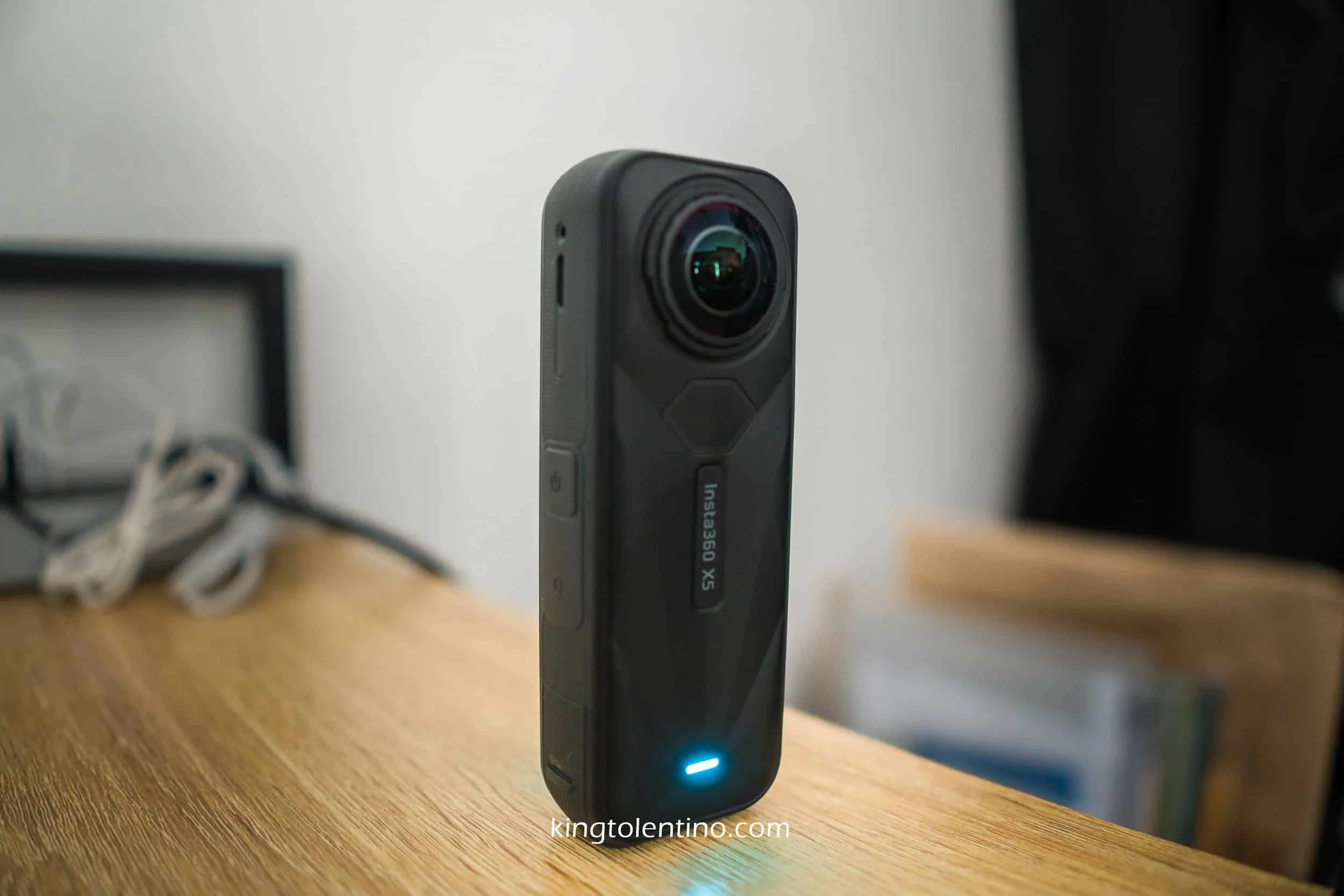
1. Charge the Insta360 X5 Battery
Before powering your camera, make sure the battery is fully charged.
You can directly charge your Insta360 X5 using the USB-C cable.
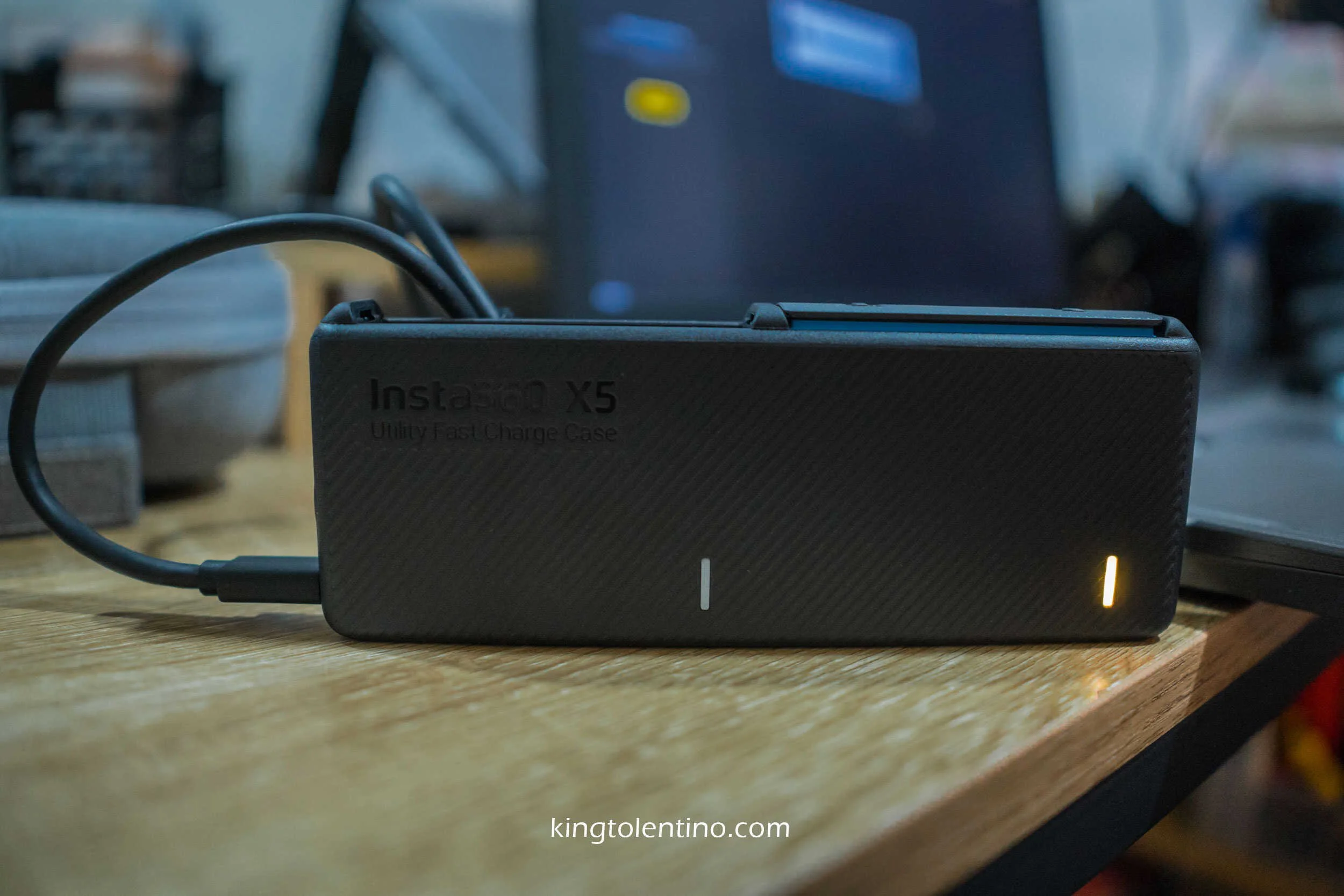
Alternatively, you can use the Utility Fast Charge Case. Features a 2 battery slots and can charge two batteries plus the actual camera at the same time.
Keep in mind that charging all batteries and the camera simultaneously, may reduce the fast-charging performance.
2. Insert a Compatible microSD Memory Card
It is essential to use the recommended memory card for best performance, especially when shooting high resolution videos.
Insert the microSD card into the memory card slot of Insta360 X5. The labels should be facing the battery.
The minimum requirement is a v30 speed class microSD or higher.
I reused a microSD card from another action camera, and the Insta360 X5 required it to be reformatted. To avoid issues, it’s best not to interchange memory cards between different cameras.
3. Install the Insta360 App
The Insta360 app is required to activate, pair, and update your camera.
Download the Insta360 app from the Google Play Store or Apple App Store.
Check your device compatibility before installation.
Minimum OS requirements: Android 10+ or iOS 13+
My device didn’t fully meet the requirements, but it still connected after installing system updates.
If your device is not compatible, some features may not work, or the app may fail to connect to the Insta360 X5. In this case, you can manually update the camera using Insta360 Studio on desktop.
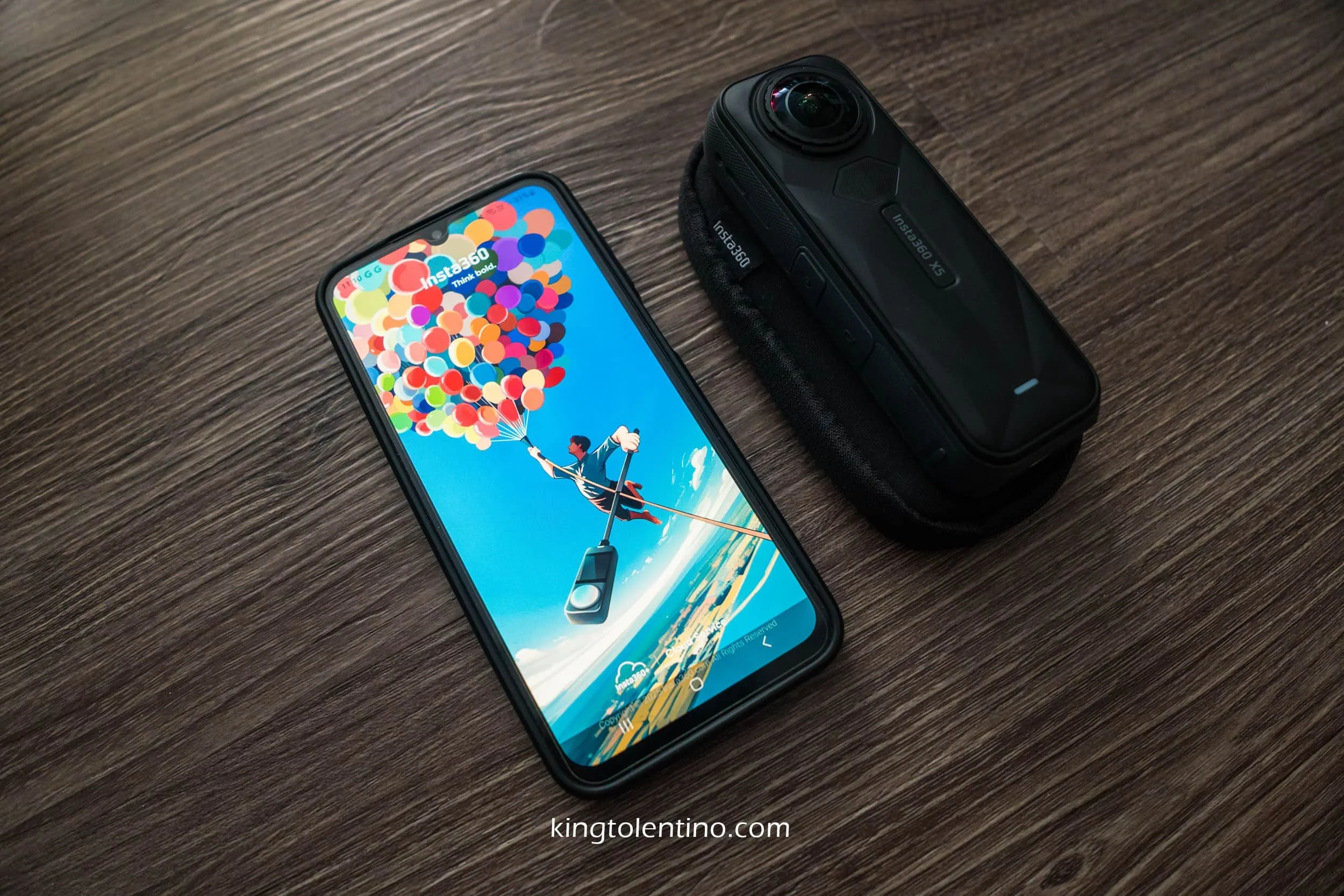
4. Create an Insta360 Account
First-time users need to create an Insta360 account. You can use your existing email for the signup.
Once registered, follow the on-screen instructions in the Insta360 app to continue the setup process.
5. Pair the Insta360 X5 with the App
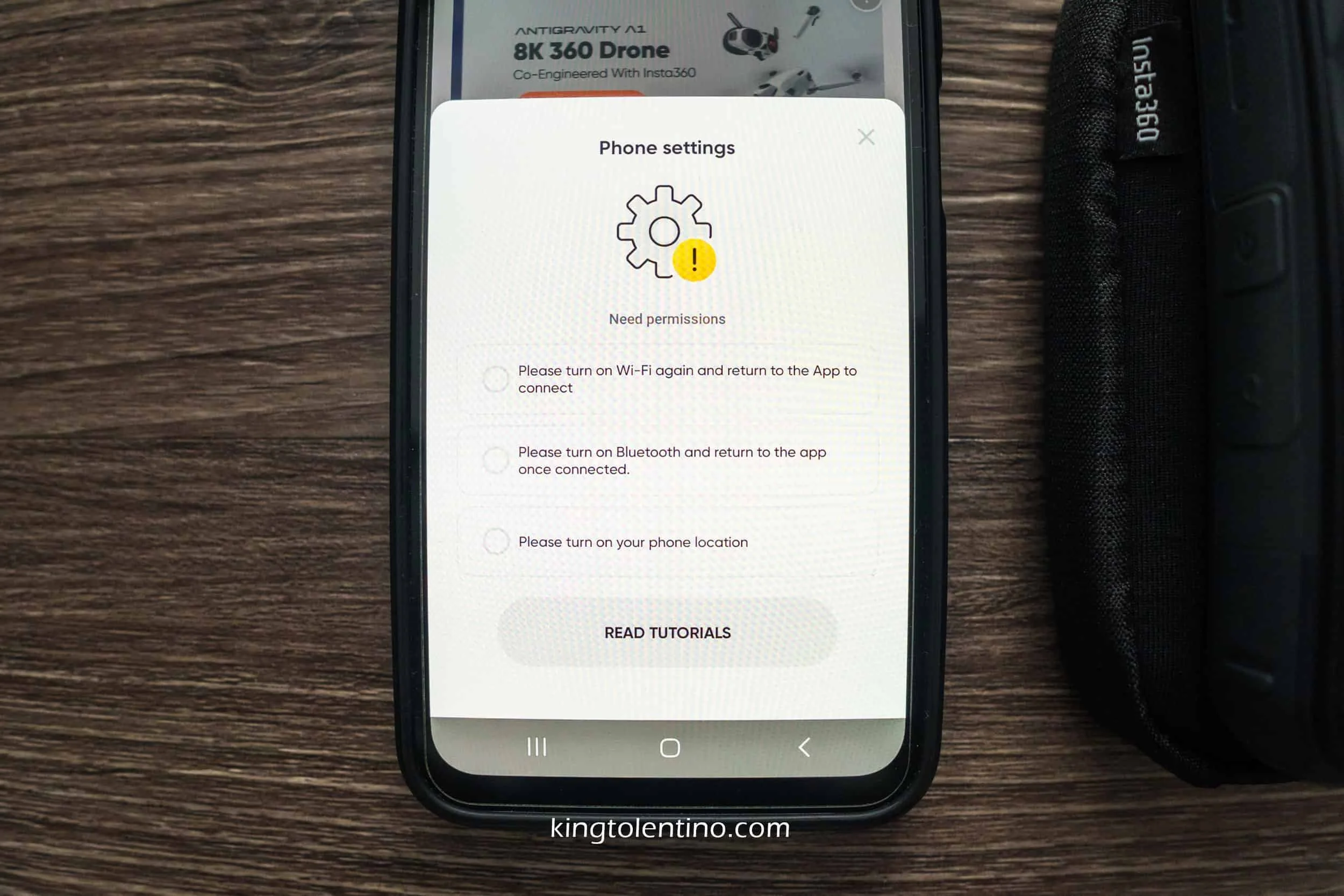
Tap the camera icon at the bottom center of the Insta360 app.
The app requires to enable and give access to the following:
Wi-Fi
Bluetooth
Location
6. Update the Insta360 X5 Firmware
The Insta360 app will notify you if a firmware update is available. Ensure to update the firmware to the latest version for better performance and access to the latest features.
To enable automatic firmware caching,
Tap the Account Settings in the lower right of the screen.
Tap Device Firmware Info under Device Settings.
Enable Firmware Cache. To ensure the latest firmware is cache in your device once you’ve connected to a Wi-Fi.
This Insta360 X5 setup guide should help you get your camera ready for shooting in just a few minutes. I’m currently testing the Insta360 X5 and will be sharing detailed posts about its features, video quality, stabilization, and real-world performance soon.
If you’re looking for one of the best 360 action cameras available today, check out the Insta360 X5 using the links below:
• Insta360 X5 (Philippines)
• Insta360 X5 (Outside the Philippines)
IMPORTANT THINGS TO CONSIDER ABOUT INSTA360
Insta360 Information
Website: https://www.insta360.com
For reference, I bought my Insta360 X5 camera on December 2025 for Php33,490
Only buy the product in their official store.
It comes with a 1 year warranty.




























WHAT’S IN MY BAG?
If you want to know more about the cameras, gadgets and travel essentials I use, check out “MY GEAR”

Luxury Beach Resort in Botolan, Zambales.